
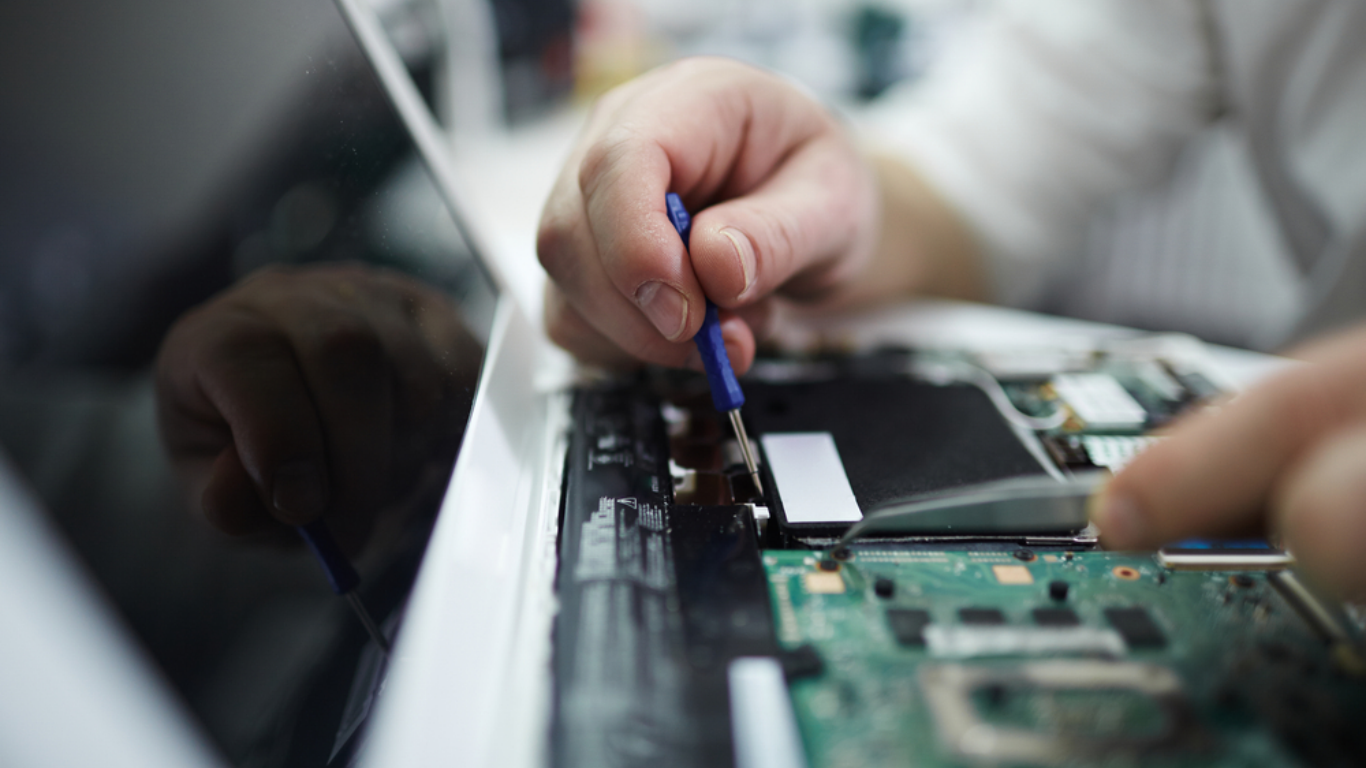
A slow-booting workstation, an unexpectedly loud cooling fan, or a program that freezes twice a day might feel like minor workplace annoyances. Most employees restart their machines and keep working to meet deadlines. However, these small performance glitches are often the earliest indicators of hardware degradation or software corruption. Seeking prompt computer repair in Hamilton that businesses trust can mean the difference between a routine component replacement and a catastrophic loss of client records, financial spreadsheets, and operational files.
Why Minor Hardware and Software Issues Escalate
Modern business computers rely on tightly integrated components—solid-state drives (SSDs), motherboards, power supplies, and operating systems—that work together continuously. When one component begins to fail, it places extra strain on the rest of the system.
For example, a failing cooling fan causes internal temperatures to spike. Sustained heat degrades solder joints on the motherboard and shortens the lifespan of storage drives. Similarly, a corrupted operating system update can repeatedly force improper shutdowns, gradually damaging the file allocation table on your hard drive. Once the storage medium becomes unreadable, standard recovery tools may no longer be able to retrieve your business data without expensive clean-room intervention.
Early Warning Signs You Should Not Ignore
Recognizing symptoms early gives your team time to back up critical files and address the root cause safely:
- Unusual Noises: Clicking, grinding, or whirring sounds from a desktop tower or laptop often point to mechanical hard drive wear or failing fans.
- Frequent Blue Screens or Kernel Panics: Repeated system crashes usually indicate memory (RAM) errors, driver conflicts, or failing storage sectors.
- Sluggish File Access: If folders take noticeably longer to open or files occasionally fail to save, your drive may be struggling with bad sectors.
- Overheating and Battery Swelling: Excessive heat or a trackpad that feels raised can signal internal battery degradation that threatens nearby components.
Suitability: When Repair Is the Right Choice Over Replacement
Not every malfunctioning office computer needs to be discarded. Professional diagnostics help determine whether a targeted repair makes financial and operational sense.
Repair is typically ideal when a machine is under four to five years old, meets your current software requirements, and suffers from an isolated issue—such as a degraded battery, a faulty power supply, a damaged charging port, or a failing storage drive. Conversely, if a device requires multiple major component replacements or can no longer support current security updates, migrating your data to a newer workstation is usually the more practical path.
How a Professional Repair Procedure Protects Your Data
Attempting DIY fixes or running aggressive third-party repair utilities on a struggling machine can unintentionally overwrite recoverable sectors. A structured diagnostic and repair workflow prioritizes data preservation before any hardware changes are made.
- Diagnostic Assessment and Risk Evaluation
A technician first tests system health—checking drive SMART status, memory integrity, thermal performance, and power delivery—without forcing heavy read/write cycles on unstable drives.
- Data Imaging and Backup
Before replacing parts or reinstalling an operating system, healthy data partitions are cloned or backed up to secure external media. This ensures that even if a drive fails during testing, your files remain intact.
- Component Repair and System Optimization
Once data is secured, faulty hardware is replaced, thermal paste or airflow paths are cleaned, and operating system files are repaired or freshly installed.
- Verification and Recovery Testing
After reassembly, the system undergoes stress testing to confirm stability, and backed-up files, user profiles, and essential business applications are verified for proper access.
Benefits of Proactive Computer Maintenance and Repair
Addressing workstation issues early delivers measurable advantages for small and mid-sized organizations:
- Reduced Downtime: Planned repairs take a fraction of the time required to rebuild lost databases or reconfigure a brand-new workstation from scratch.
- Lower Total Costs: Replacing a failing SSD or RAM module costs significantly less than emergency forensic data recovery.
- Stronger Cybersecurity: Healthy systems reliably install critical operating system patches, closing vulnerabilities that ransomware attackers routinely exploit.
- Extended Hardware Lifespan: Routine thermal cleaning and timely part replacements keep office equipment productive for years longer.
Preparation Steps Before Bringing a Computer in for Service
If an office workstation starts acting up, taking a few simple precautions before handing it over to a technician helps protect your information:
- Stop Heavy Usage: Avoid downloading large files, running disk defragmenters, or repeatedly rebooting a crashing computer.
- Back Up Priority Files: If the system is still responsive, copy your most urgent active documents to your company cloud drive or an encrypted external drive.
- Document Error Messages: Take a quick photo of any error codes or unusual behaviour so the technician can pinpoint the issue faster.
- Note BitLocker or Encryption Keys: Ensure your IT administrator has access to drive encryption recovery keys in case storage hardware needs to be accessed securely.
Realistic Expectations, Risks, and Recovery Timelines
While most routine hardware repairs—such as SSD upgrades, battery replacements, or operating system repairs—can be completed within one to two business days, timelines depend on part availability and the severity of drive damage.
It is also important to maintain realistic expectations regarding severely degraded storage. If a drive has suffered physical platter damage or sudden controller failure, standard repair techniques may not restore every file. Combining timely workstation repairs with automated, off-site cloud backups remains the most reliable safeguard against permanent data loss.
Burl-Oak Systems
Local businesses rely on dependable IT infrastructure to keep daily operations moving without interruption. Burl-Oak Systems provides practical hardware diagnostics, workstation repairs, managed IT services, and cybersecurity solutions tailored to organizations that want reliable support without unnecessary jargon.
Get IT Support Today
If an office computer is showing signs of slowdown, overheating, or hardware instability, addressing it early can save your team from costly downtime and lost records. Reach out to Burl-Oak Systems to discuss your workstation issues, arrange a diagnostic evaluation, and keep your business systems running smoothly across Hamilton, Burlington, and Oakville.
Call us directly at 905-639-9198 to speak with our team and arrange a diagnostic check.
Frequently Asked Questions
How do I know if my slow computer needs a simple repair or a full replacement?
If your computer is less than five years old and struggles mainly with boot times, overheating, or battery life, upgrading to a solid-state drive, adding RAM, or cleaning internal cooling components often restores full performance. A diagnostic check will confirm whether the motherboard and processor remain in good condition.
Will my business files be safe during a computer repair?
Yes, provided proper precautions are taken. Professional technicians prioritize creating a verified backup or disk image before performing hardware replacements or operating system reinstallations. However, if a drive is already physically failing, immediate imaging is critical to preserve accessible files.
Can a failing hard drive still be repaired?
Mechanical hard drives and solid-state drives cannot be physically repaired for ongoing use once they begin failing. Instead, the standard procedure is to clone your existing data onto a brand-new, reliable drive and install that replacement into your computer.
How long does a typical business computer repair take?
Common repairs—such as replacing a failing drive, power supply, or battery, or resolving operating system corruption—typically take 24 to 48 hours once parts are on hand. More complex liquid damage or specialized component orders may take slightly longer.
What should I do immediately if my work computer stops booting?
Turn the computer off and avoid repeatedly forcing it to restart, as power cycling a failing drive can worsen data corruption. Contact an IT technician to extract your data and diagnose the underlying hardware fault safely.